







How to lodge a bridging loan application in ApplyOnline

Did you know you can lodge a bridging loan within ApplyOnline®?
When your customer is buying a new property before they have sold their existing one, a bridging loan allows them to purchase without waiting for the sale to settle. ApplyOnline supports the lodgement of bridging loan applications, if enabled by the lender, so you can capture both properties and both debt positions in a single application.
Bridging applications are captured differently from a standard home loan. Instead of one loan secured by one property, you capture the existing property your customer is selling and the new property they are buying, along with the debt they will owe while they hold both properties and the debt they will owe once the existing property is sold. This tip steps through the most common scenario: open bridging for an owner-occupier.
When should I use the bridging finance submission type?
Use it whenever your customer needs to settle on a new property before the proceeds from selling their existing property are available. This includes closed bridging, where the existing property has already been sold with contracts exchanged and a settlement date set, and open bridging, where the existing property has not yet been sold and there is no confirmed sale date. Open bridging generally carries more risk for the lender, so lender requirements are often stricter.
Bridging details and maximum bridging periods vary between lenders, so check your chosen lender’s requirements first. It also helps to have the following ready: the estimated value and selling costs of the existing property, details of any loan secured by it, the purchase price, contract details and purchase costs for the new property, and the expected bridging period.
What key terms should I know before I start?
ApplyOnline uses a handful of bridging terms across the ‘Loans’, ‘Securities’ and ‘Policy Check’ sections. Understanding how they relate makes the application much easier to structure.
- Bridging period: the timeframe your customer has to sell the existing property, generally measured from settlement of the new property.
- Peak debt: the maximum amount owed while your customer holds both properties, typically the existing loan balance, the purchase price of the new property and capitalised interest, less any deposit or contribution from their own funds.
- Net sale proceeds: the funds expected from the sale of the existing property after selling costs such as agent commission, marketing and legal fees. Where the property has not been sold, this is based on an estimated sale price, to which some lenders apply a buffer.
- End debt: the amount that remains once the net sale proceeds are applied to the loan, which becomes your customer’s ongoing home loan secured by the new property.
- Bridging debt: the portion of the loan expected to be repaid from the sale of the existing property, being the difference between peak debt and end debt.
- Capitalised interest: interest on the bridging debt that is added to the loan balance rather than paid as monthly repayments, so your customer is not making repayments on two debts at once.
Many lenders assess serviceability on the end debt, however calculation methods vary between lenders.
What are the benefits of lodging bridging loans in ApplyOnline?
- Capture both properties and both debt positions in one application, rather than working around a structure built for a single loan.
- Improve accuracy with the ‘Bridging scenario’ figures shown alongside the loan, including ‘Minimum bridging loan’, ‘Capitalised interest’, ‘Peak debt’ and ‘Calculated end debt’.
- Save time with the existing property and its mortgage flowing from the ‘Securities’ tab into ‘Real estate assets’ in the ‘Financials’ tab.
- Reduce missed items with document condition cards for both properties and the existing mortgage.
- Support clear conversations with your customer by reviewing their position during the bridging period and once the existing property is sold.
- Strengthen your submission by checking the ‘Ongoing’ and ‘Bridging’ metrics in ‘Policy Check’ before you lodge.
How do I lodge a bridging loan application?
The process follows the usual ApplyOnline tab order, with the key differences in the ‘Application’, ‘Loans’ and ‘Securities’ tabs. The steps below cover open bridging for an owner-occupier, where both properties are held as security, the existing mortgage is refinanced into the bridging loan and repaid when the home is sold, and interest is capitalised during the bridging period.
How do I set up the application?
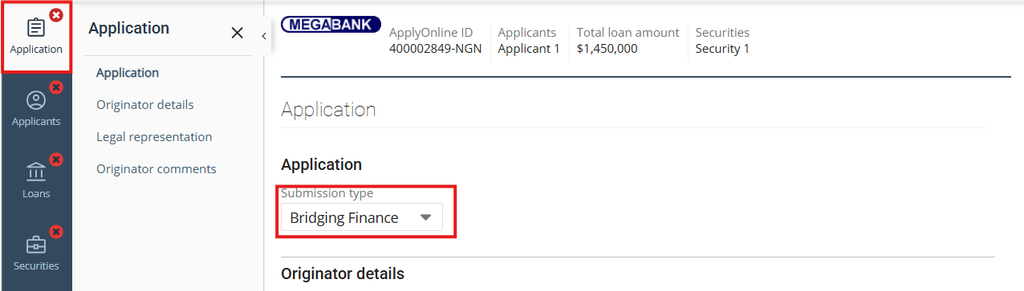
In the ‘Application’ tab, select ‘Bridging Finance’ as the ‘Submission type’ and complete all other required fields as you would for any application.
How do I structure the bridging loan?
Open the ‘Loans’ tab, where the bridging structure comes together. Some lenders recommend completing the ‘Securities’ tab first, as the bridging figures are calculated from it. If so, a dismissible ‘Note’ banner will appear, and you can complete the ‘Securities’ tab first or continue in the ‘Loans’ tab if you prefer.
Under ‘Deposits and contributions’, add any deposit or contribution, if applicable. Then, under ‘Bridging loan’, capture a single loan split with a ‘Base amount’ that covers at least the ‘Minimum bridging loan’. Select the loan product in the ‘Product Selector’ field, either by typing the product name and choosing from the search suggestions or by clicking ‘Find it manually’. Complete the mandatory fields, including ‘Total loan term’ and ‘Total loan term months’ for the bridging period, and select ‘Interest Capitalised’ as the ‘Repayment type’. Depending on the lender, you may also need to capture ‘Bridging term months’, and capitalised interest may be entered manually or calculated automatically.
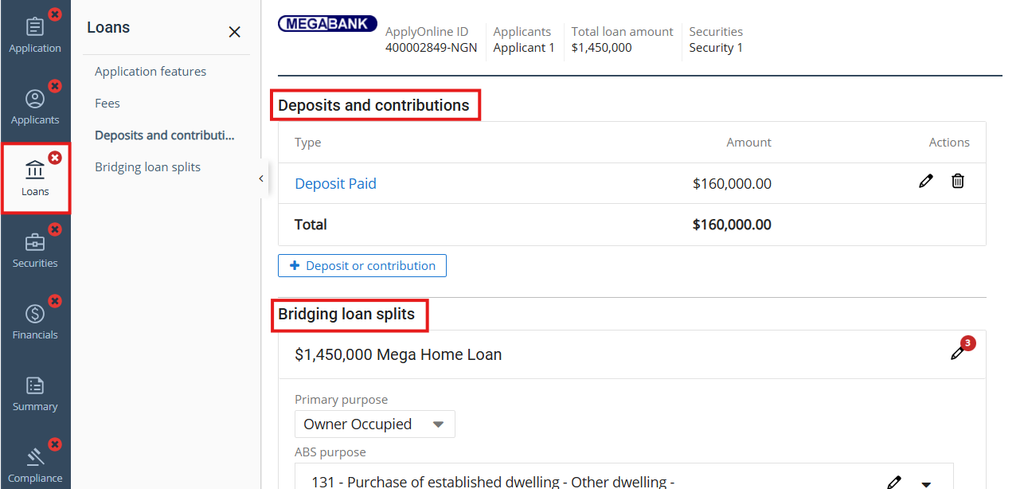
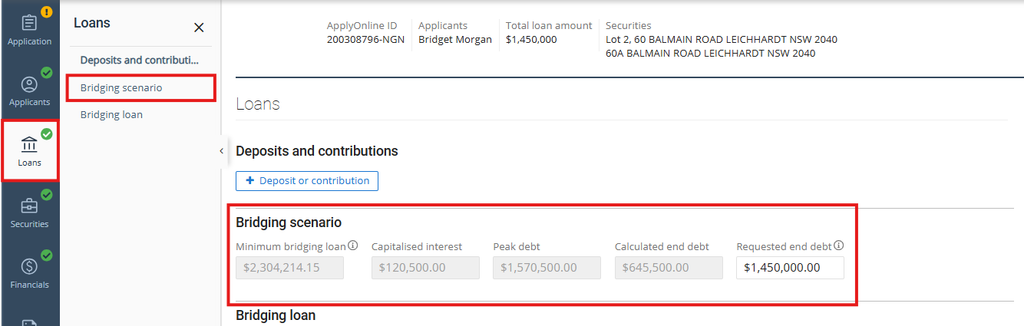
Under the ‘Bridging scenario’ section, review the figures. Depending on the lender, this includes the ‘Minimum bridging loan’, which is the minimum the loan needs to cover the new property purchase, purchase costs and any refinances, along with ‘Capitalised interest’, ‘Peak debt’ and ‘Calculated end debt’. Some lenders also allow you to enter a ‘Requested end debt’, which may be required when the calculated end debt is greater than $0. Where it is entered, the ‘Ongoing’ metrics in ‘Policy Check’ may be based on it.
How do I capture the two properties?
In the ‘Securities’ tab, click ‘+ Security’ to add the new property and select ‘Purchasing’ as the ‘Transaction type’. Complete the mandatory property details, including ‘Estimated value’ and ‘Contract price’. Then add the existing property and select ‘To Be Sold – Existing Mortgage’ as the ‘Transaction type’, or ‘To Be Sold – Unencumbered’ if the property has no mortgage.
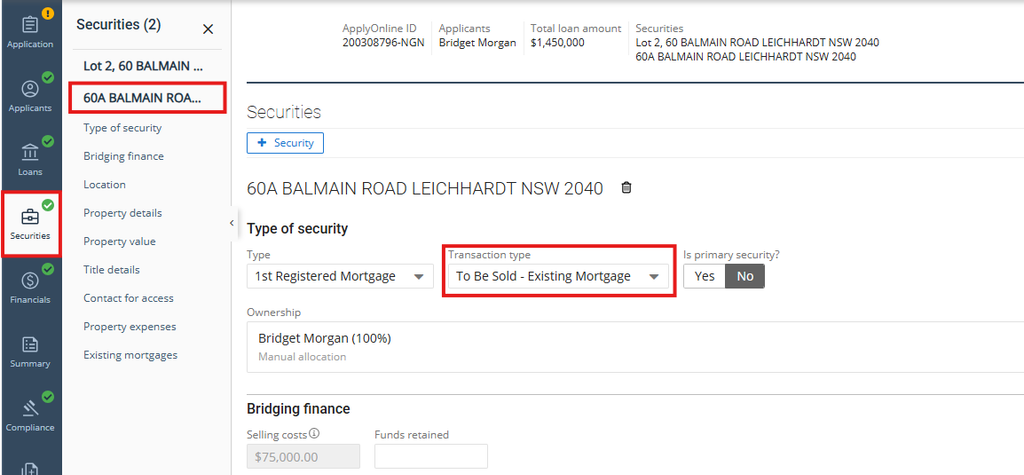
Under the ‘Bridging finance’ section of the existing property, check the ‘Selling costs’, which may be entered manually or calculated automatically depending on the lender, and complete ‘Funds retained’ if applicable. When ‘To Be Sold – Existing Mortgage’ is selected, an ‘Existing mortgages’ section is added automatically with a blank mortgage record. Click the ‘pencil’ icon to open the ‘Existing mortgage’ panel and complete the mandatory loan details, then select ‘Full’ for ‘Is liability clearing?’ if the mortgage is being repaid in full as part of the bridging loan. Click ‘Done’ to close the panel, use ‘+ Existing mortgage’ to add another mortgage record, or use the ‘bin’ icon to delete one.
What should I check in the ‘Financials’ and ‘Documents’ tabs?
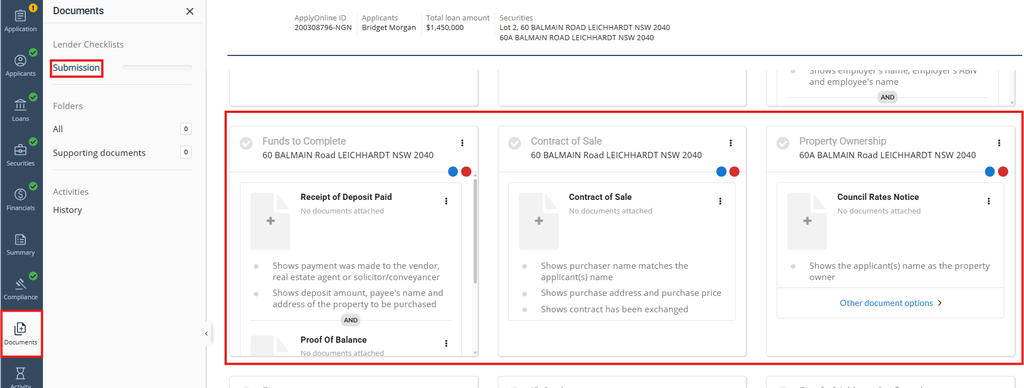
In the ‘Financials’ tab, the ‘Real estate assets’ section is prepopulated with the existing property and its mortgage or mortgages from the ‘Securities’ tab, so check they appear correctly. In the ‘Documents’ tab, you will see document condition cards for both properties and the existing mortgage, such as ‘Contract of Sale’ for the new property, ‘Property Ownership’ for the existing property and ‘Home Loan (Clearing)’ for the existing mortgage. Upload all relevant documents to satisfy lender requirements.
Important note: Bridging finance is available only where the lender has enabled it, and data and document requirements vary between lenders. Complete the bridging details in line with the requirements of the lender you are lodging with.
How do I know if the application is ready to submit?
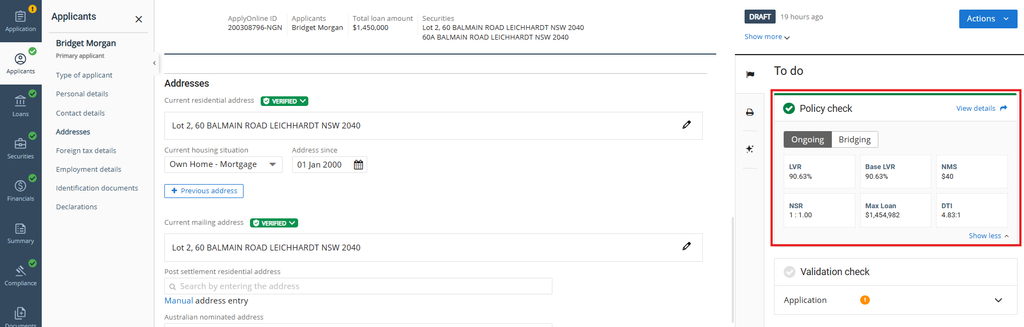
Use the metrics in the ‘Policy Check’ section in the right-hand side panel to review readiness. For bridging loans, you will see two sets of metrics. The ‘Ongoing’ metrics show the position once the existing property is sold and the net sale proceeds are applied, based on the ‘End Debt’ or the ‘Requested End Debt’ where entered, and include ‘LVR’, ‘NMS’ and ‘DTI’.
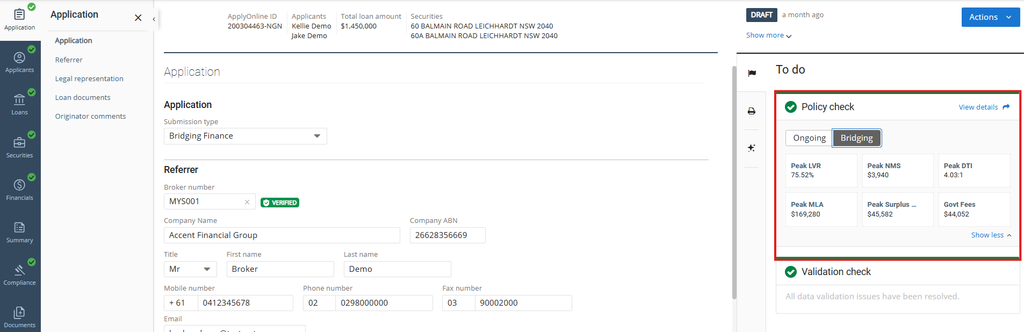
The ‘Bridging’ metrics show the position during the bridging period, while your customer holds both properties, based on the ‘Peak Debt’. These include ‘Peak LVR’, ‘Peak NMS’ and ‘Peak DTI’. The metrics, calculation methods and validation rules may vary between lenders.
Most issues in a bridging application trace back to a small number of inputs. Before you lodge, check that:
- The estimated value of the existing property is realistic, as it drives the net sale proceeds, the end debt and the ‘Ongoing’ metrics.
- The selling costs are correct, as they reduce the net sale proceeds and increase the end debt.
- Every mortgage secured by the existing property is captured in the ‘Securities’ tab and ‘Is liability clearing?’ is complete, so the ‘Minimum bridging loan’ reflects any refinances.
- The bridging period suits your customer’s expected selling timeframe and lender policy.
What if my customer’s scenario is different?
This tip covers open bridging for an owner-occupier. Other common scenarios include closed bridging, where the existing property has been sold and is awaiting settlement so the contract price is used instead of an estimated sale price, and a debt-free existing property, where you select ‘To Be Sold – Unencumbered’ as the ‘Transaction type’. Others include an investment property, interest paid monthly instead of capitalised, multiple properties, and no end debt where the net sale proceeds are expected to repay the whole loan. These scenarios may require different or additional information, and requirements vary between lenders.
By working through each tab in order and checking the ‘Policy Check’ metrics before you submit, you can be confident that the bridging and ongoing positions are captured accurately and in line with lender requirements.
For more tips on bridging loans in ApplyOnline, please contact our Customer Success team or register for our free CPD-accredited webinars.




XS
SM
MD
LG
XL
XXL.