








Order valuations directly within ApplyOnline

Did you know you can order a valuation directly within ApplyOnline®?
ApplyOnline’s Valuation Request service lets you order, track and manage valuations from within the platform, with back-channel messaging keeping you updated on progress every step of the way.
If integrated with CoreLogic RP Data (ValEx), ApplyOnline will check for an existing valuation upon submission of the application. If one has already been ordered – whether through ApplyOnline or elsewhere – the completed valuation is automatically retrieved, so you avoid ordering a duplicate.
How do I get started with a valuation request?
ApplyOnline gives you two ways to order a valuation, depending on where you are in the process:
- Stand-alone – order a valuation upfront, before an application is even created
- Within an application – order a valuation at set stages of an existing application, straight from the ‘Securities’ tab
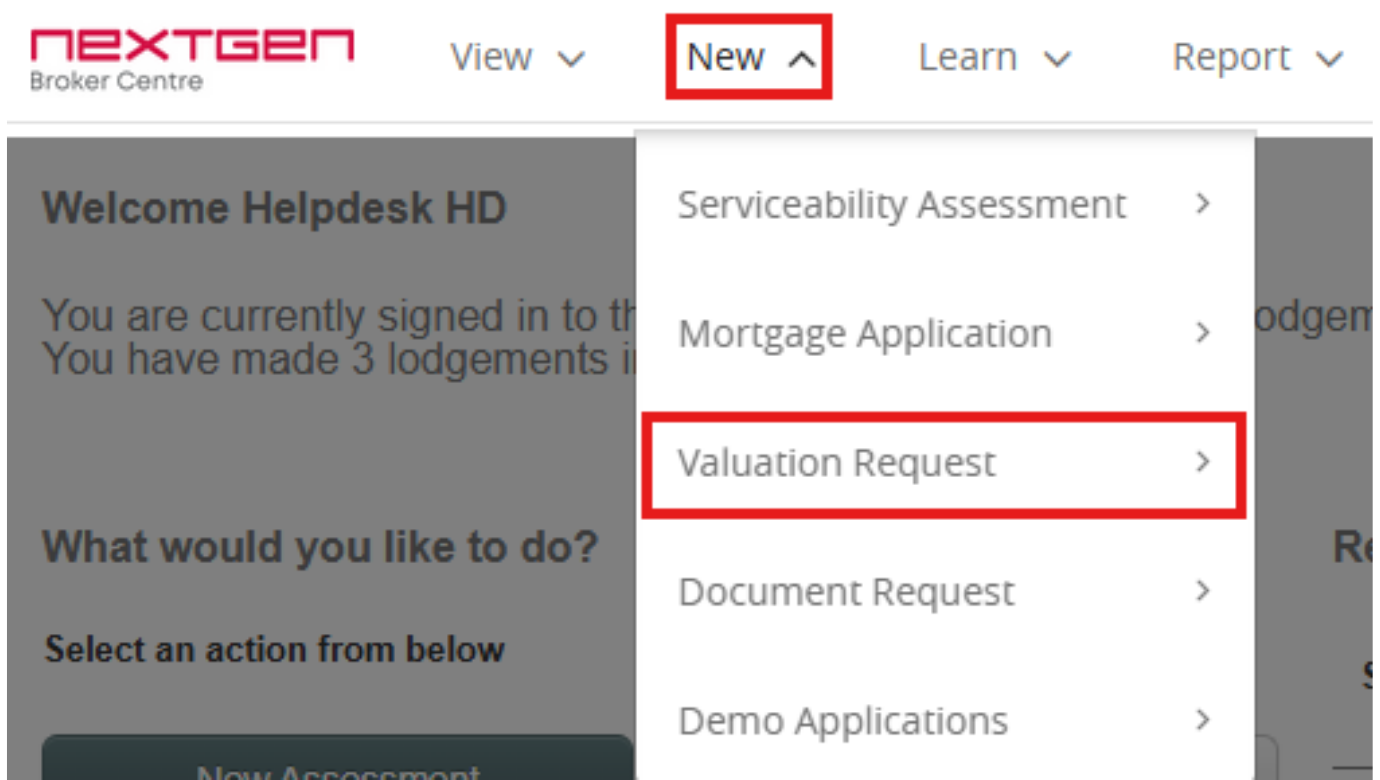
To start a stand-alone valuation, simply click ‘New’ then ‘Valuation Request’ from the menu:
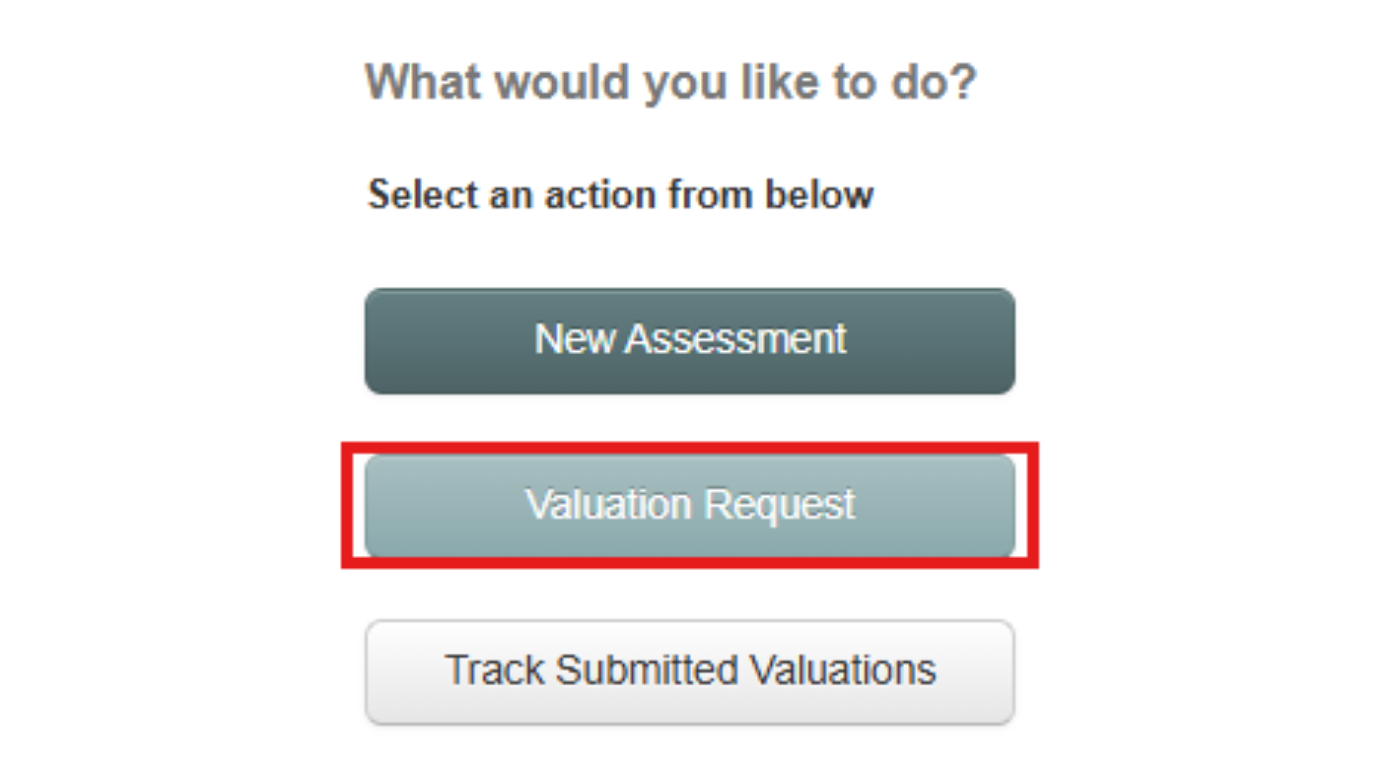
Or, use the ‘Valuation Request’ quick link on the ApplyOnline homepage:
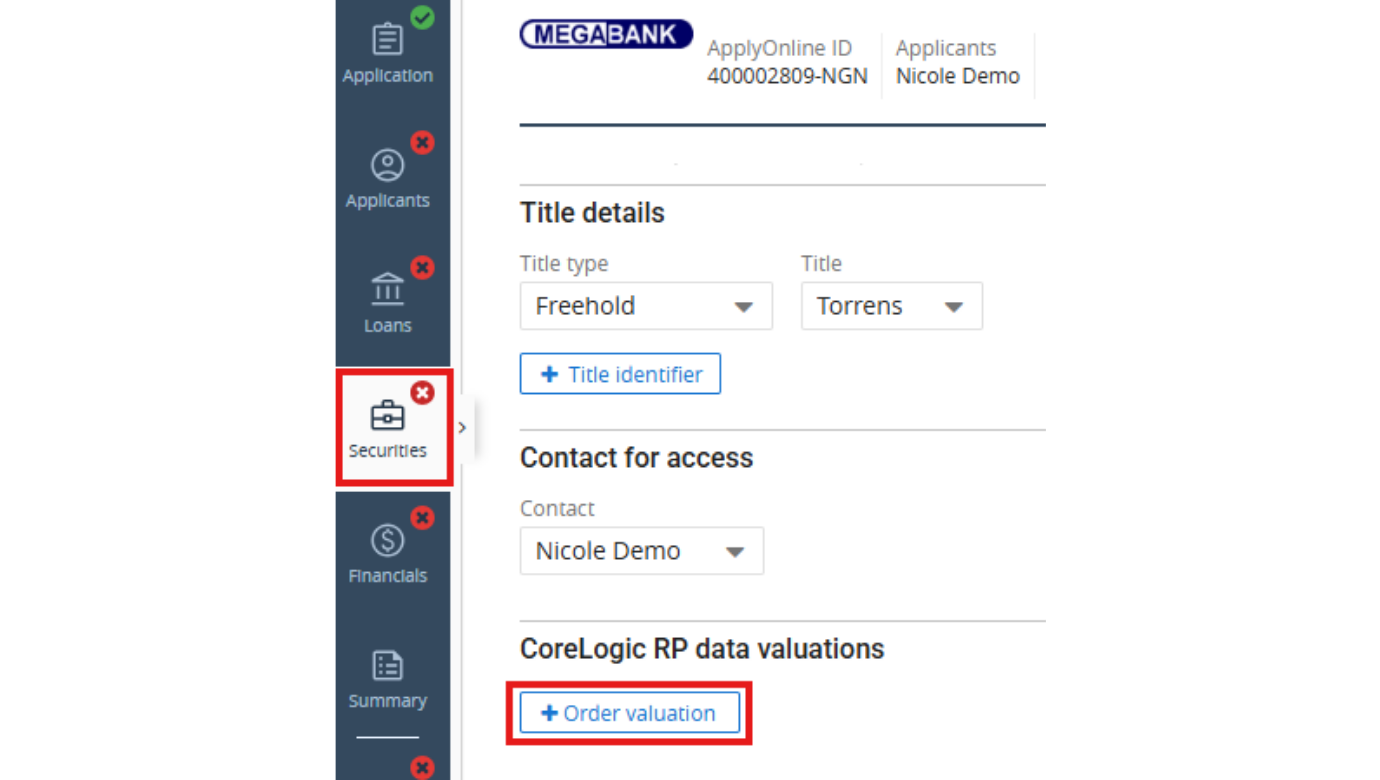
To order a valuation from within an application, head to the ‘Securities’ tab and click ‘+ Order Valuation’, then confirm by clicking ‘Order’. This method uses information already captured in the application, so you won’t need to re-enter it. The availability of this option is determined by the current application status and eligible milestones.
What are the benefits of ordering through ApplyOnline?
- Avoid re-keying information already captured in the application
- Track pipeline valuations via back-channel messaging, right alongside the rest of your application
- Automatically retrieve an existing valuation if one has already been ordered, reducing duplicate requests
- Improve your ‘Time to Yes’ with a faster, more transparent valuation process
How do I complete and submit a valuation request?
Once you’ve started a request, you’ll land on the valuation request form. If the request was initiated from the ‘Securities’ tab, information already captured in the application will be pre-populated for you.
The form uses built-in validation, so mandatory fields – based on the application data and your lender’s specific requirements – are clearly marked in red. Simply hover over a highlighted field for guidance on what’s needed.
You can save your progress at any time using the ‘Save’ button. Separately, the colour of the ‘Check Details’ button tells you where things stand with mandatory fields:
- Red – there are outstanding mandatory items. Click ‘Check Details’ to see a list of what’s missing; each item links straight to the relevant field. If there are any red fields the valuation request cannot be submitted until they are resolved
- Amber – a warning. Further action may help your request along, but it isn’t required for submission
- Green – you’re all set, with nothing outstanding and ready to submit
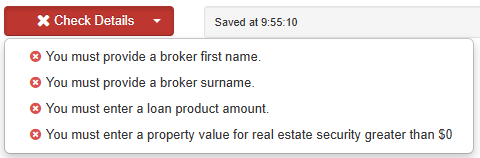
Once everything checks out green, click ‘Submit Valuation’ to send your request through. A quick checklist runs to confirm it’s been submitted successfully.
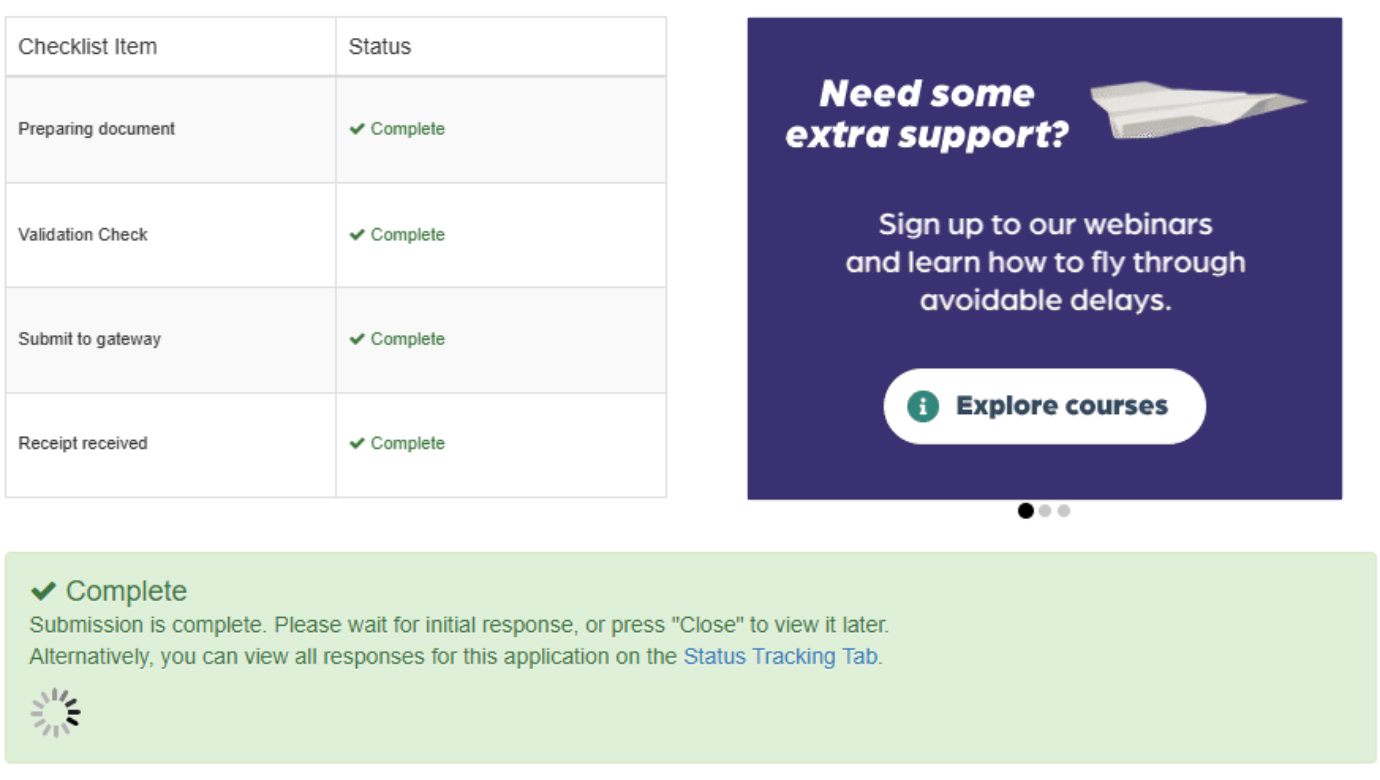
Once submitted, the ‘Valuation’ tab locks and the fields grey out. If the valuation was ordered from the ‘Securities’ tab, you’ll see the current status reflected in the ‘CoreLogic RP Data Valuations’ section of the application.

How do I attach and submit supporting documents?
Depending on your lender’s requirements, some documents may be mandatory – for example, a contract of sale where the loan purpose is a purchase. To attach documents, click the ‘Valuation supporting docs’ link which takes you to the ‘Documents’ tab within the valuation request.
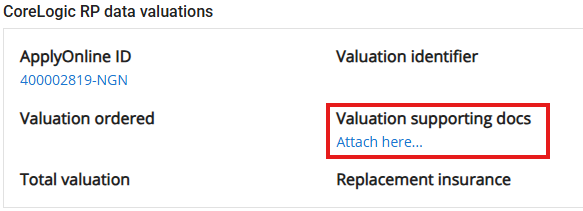
Important: your Valuation Request must be submitted before Supporting Documents can be sent to the lender.
You can upload files by choosing them from your computer or dragging and dropping them straight into the file browser – either as single-document files, or as one file containing several document types (for example, a customer’s contract of sale and comparable sales combined into one PDF).
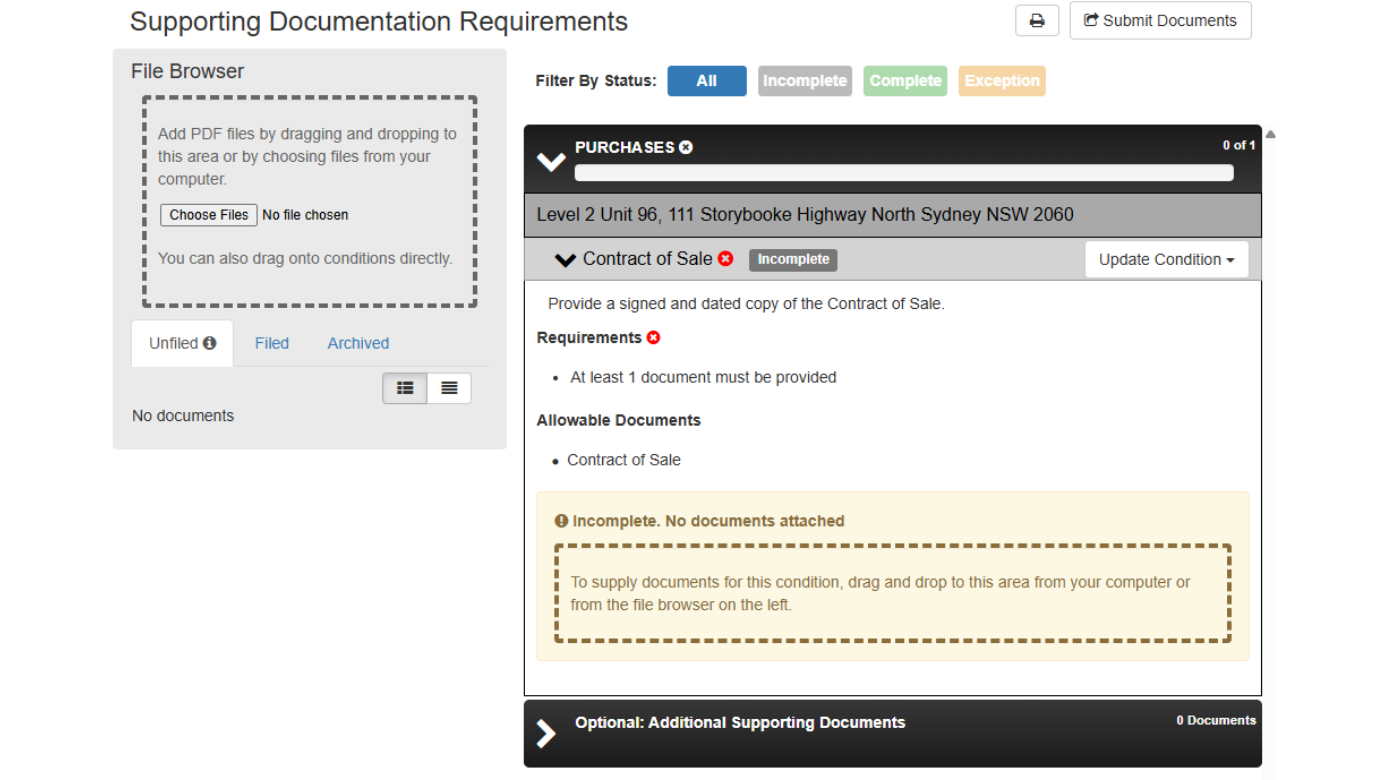
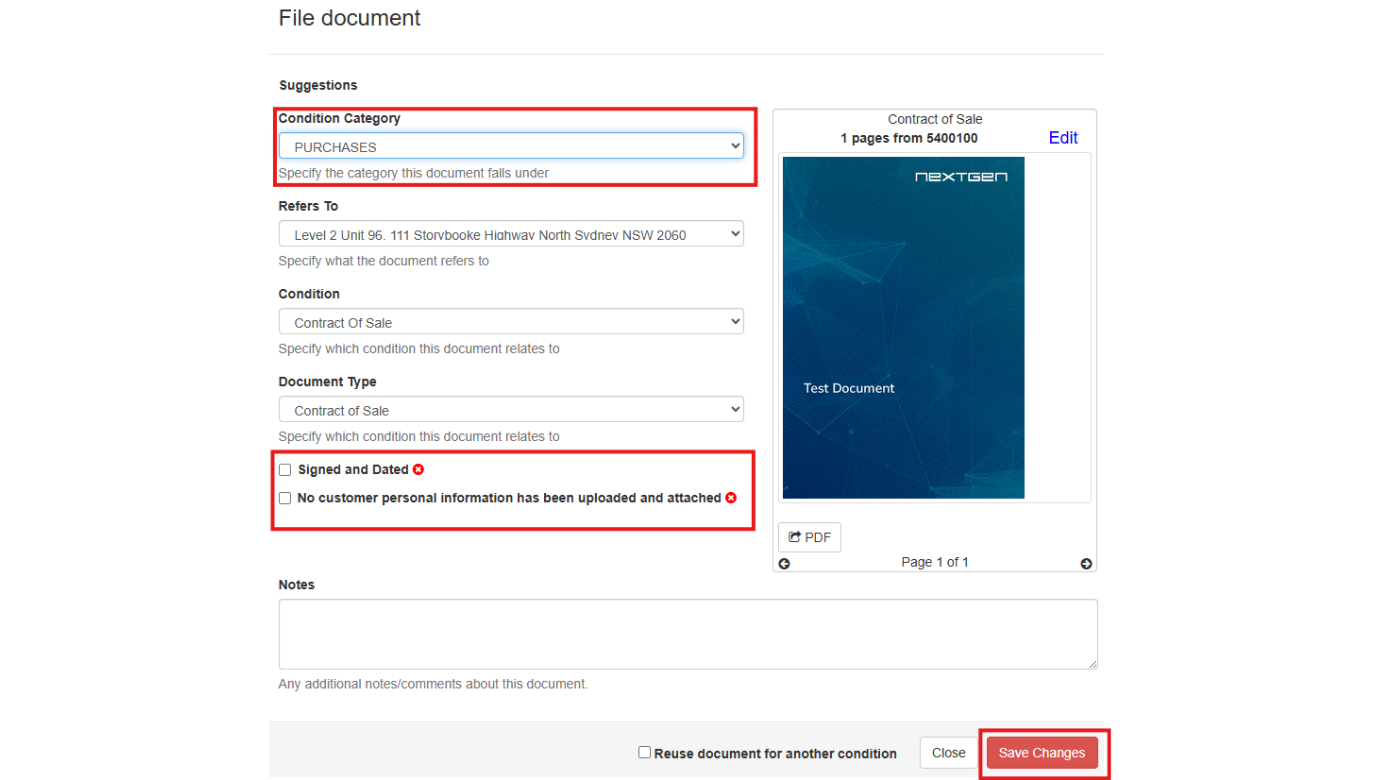
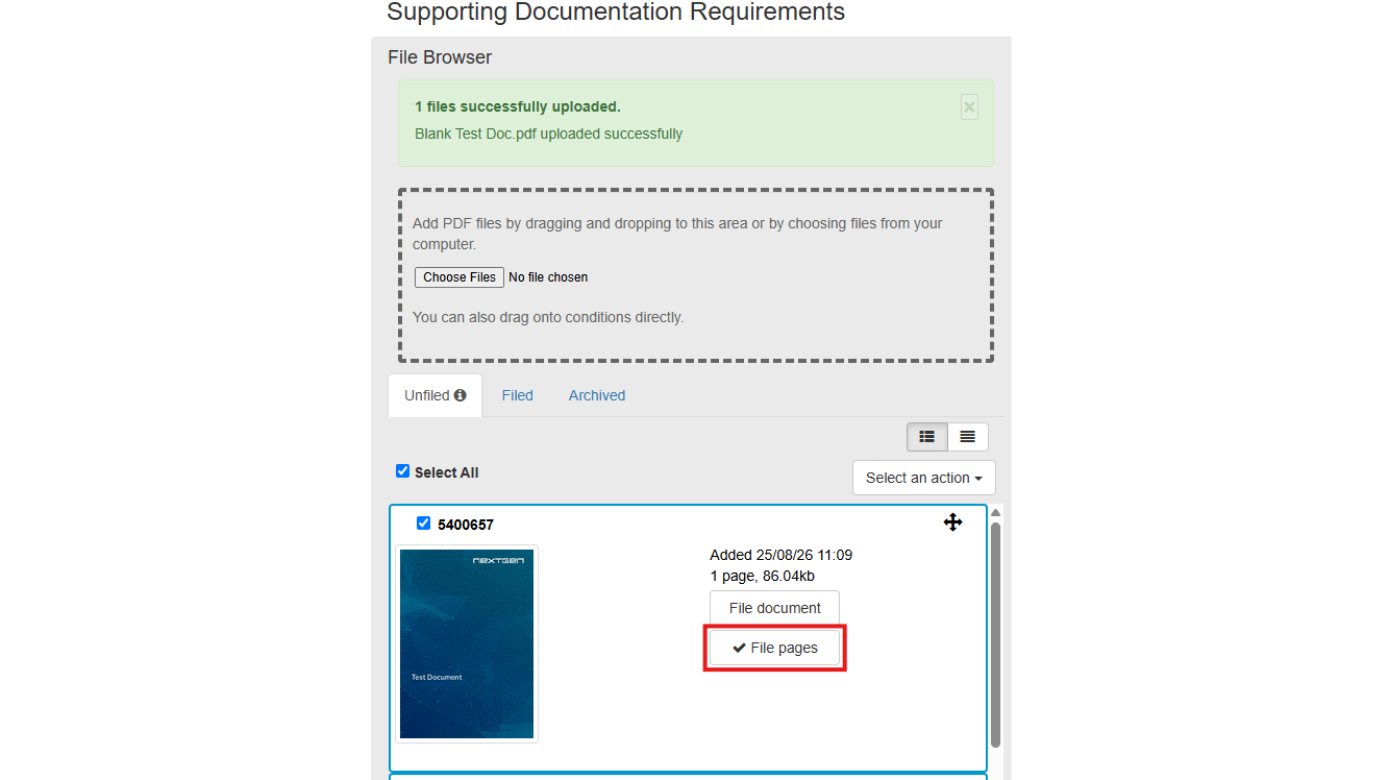
Next, file each document against the relevant requirement by dragging the thumbnail into the appropriate condition, or by clicking ‘File document’ and selecting the condition category, condition and document type. Then confirm the document meets policy requirements and click ‘Save Changes’.
Got a multi-page PDF with several document types in it? Use the ‘File Pages’ button to preview and split individual pages, then select and file the pages you need.
If a possible tax file number is detected on a page, you’ll see a warning. Simply open ‘File Pages’ and click ‘Edit’ on the affected page to draw a rectangle over the area and redact it before filing.
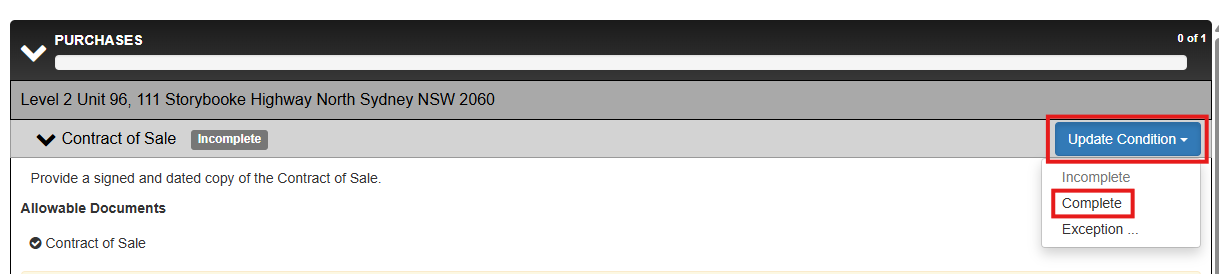
Once a document has been filed, update its condition to ‘Complete’ (this is also where you can request an ‘Exception’ if applicable).
When every requirement is satisfied, you’ll be prompted to send everything through. Click ‘Yes, submit now’ to submit to the lender straight away, or ‘No thanks’ to return to the ‘Documents’ Tab and send them later via the ‘Submit Documents’ button.
How do I track progress and view the completed report?
If your valuation was ordered from within an application, return to it any time by opening the ‘Valuation’ tab and clicking ‘Return to Application’ – this takes you back to the ‘Securities’ tab of the loan application.
To check on progress, use the ‘Submitted Valuation Requests’ menu option, or click the ‘Current Status’ link in the ‘Securities’ tab, which takes you straight to the valuation’s ‘Activity’ tab to see every event and status update.

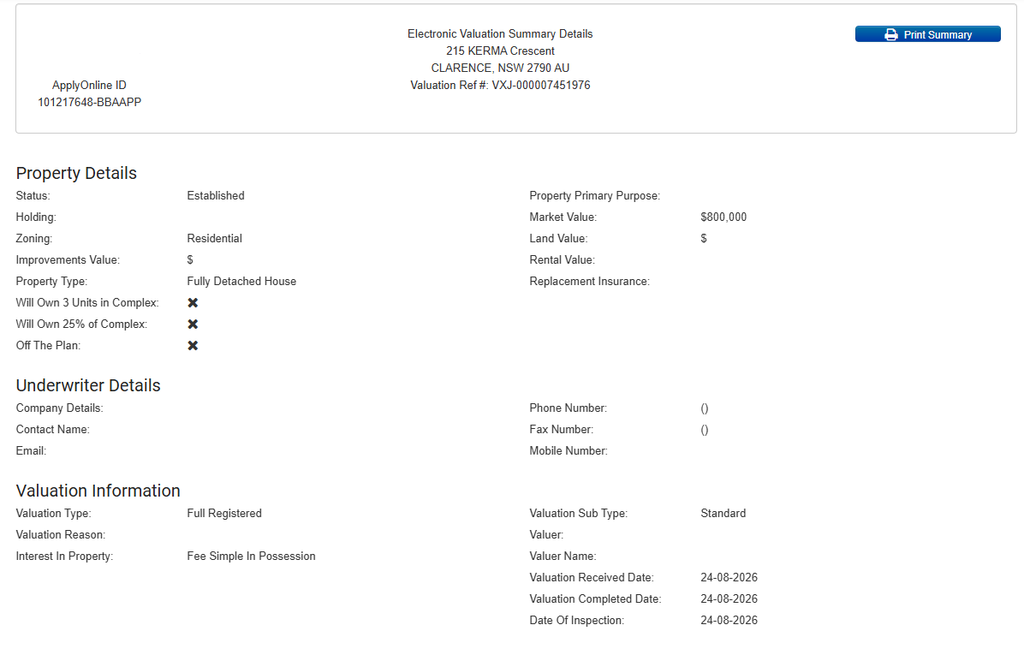
Once the valuation is complete, click the ‘Valuation Received’ link in the ‘Securities’ tab to jump to the ‘Response’ tab and view the full Electronic Valuation Summary, including property, underwriter and valuation details.
Tip: depending on your aggregator and ApplyOnline user settings, you can opt in to be notified of these updates by email, SMS, or push notification via the ApplyOnline Mobile app.
To find out more about ApplyOnline, please contact our Customer Success team or register for our free CPD-accredited webinars.
Latest articles

Article
Inside Beyond Bank’s journey from legacy platform to connected lending ecosystem

ApplyOnline tip
More ways for applicants to verify: introducing email delivery for NextGenID

Article
Celebrating our partnership with Skip, live on ApplyOnline

Roundtable
Melbourne’s leading brokers on navigating change and building to last
XS
SM
MD
LG
XL
XXL.